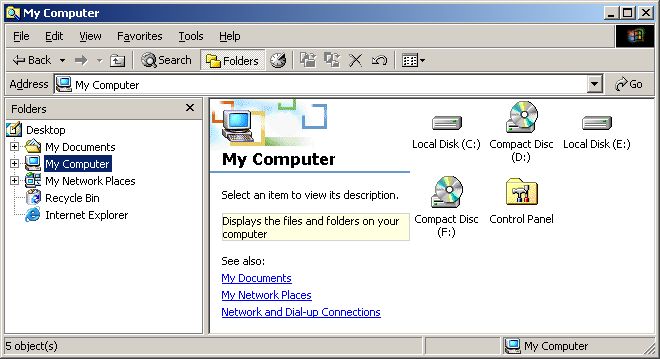
A). Open Windows Explorer or My Computer using the icon on the Desktop. Click the "Tools" menu option and then select "Folder Options" from near the bottom of this menu.
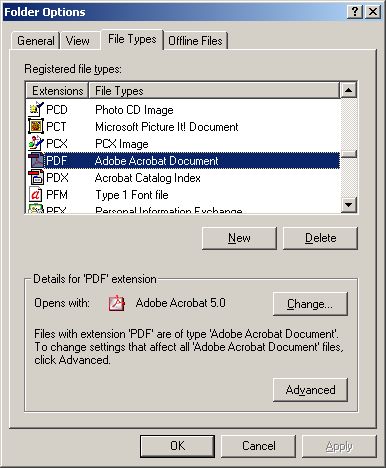
B). Click on the "File Types" tab and scroll down to PDF (these are all in alphabetical order). If you cannot find an entry for PDF, skip to D) below.
In the bottom half of the box you should see that PDF "Opens with" Adobe Acrobat or Adobe Acrobat Reader. If there is a different application here. click the "Change" button.
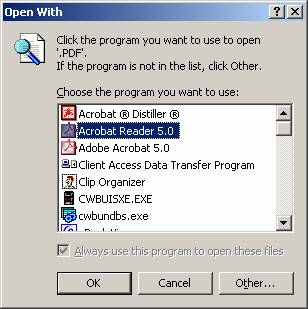
C). Scroll down to highlight "Acrobat Reader" and then hit OK. You will return to the box shown in step B) and now in the lower half it should say "Opens With" Adobe Acrobat Reader. From this screen press OK.
D). In step B above, if you did not find an entry for PDF you will need to add it. To do this, click the "New" button on the screen shown in step B). You will see the screen below. In "File Extension" enter the letters PDF and click the "Advanced" button. From the drop down box, select "Adobe Acrobat Document". Click OK and you should return to the screen shown in B.
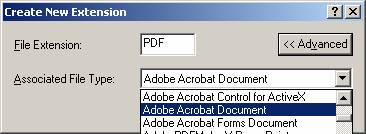
You should now be back to the screen shown in step B). If the screen in step B now shows PDF "Opens With" Adobe Acrobat Reader then click OK to finish. If there is another application shown, follow step C) above.
Adobe Acrobat should now open when you attempt to open a file with the PDF extension.